
KVM Mode – Display Artifacts

display issue when using KVM mode

Hi all,

I’ve been using Multiplicity for quite a while and have had an ongoing display issue when using KVM mode.

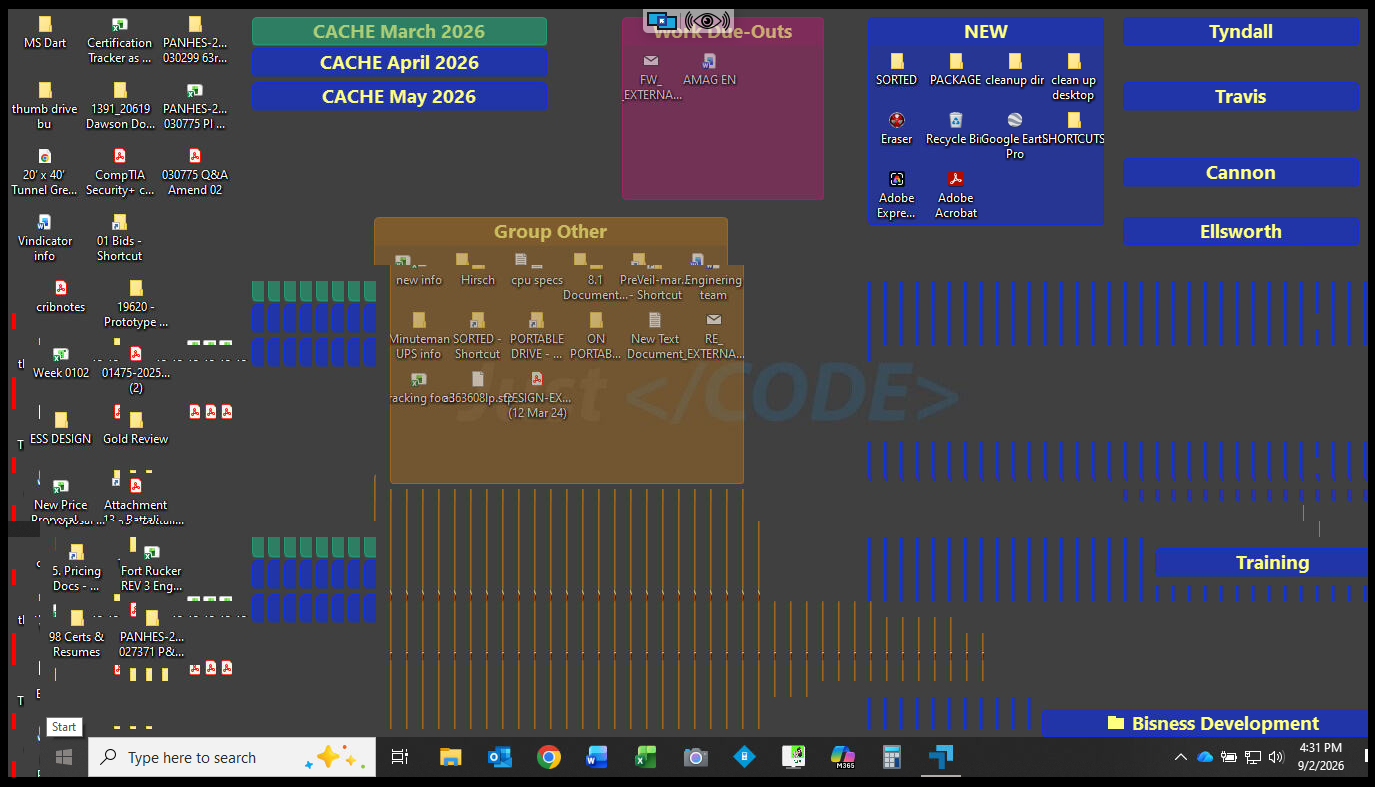
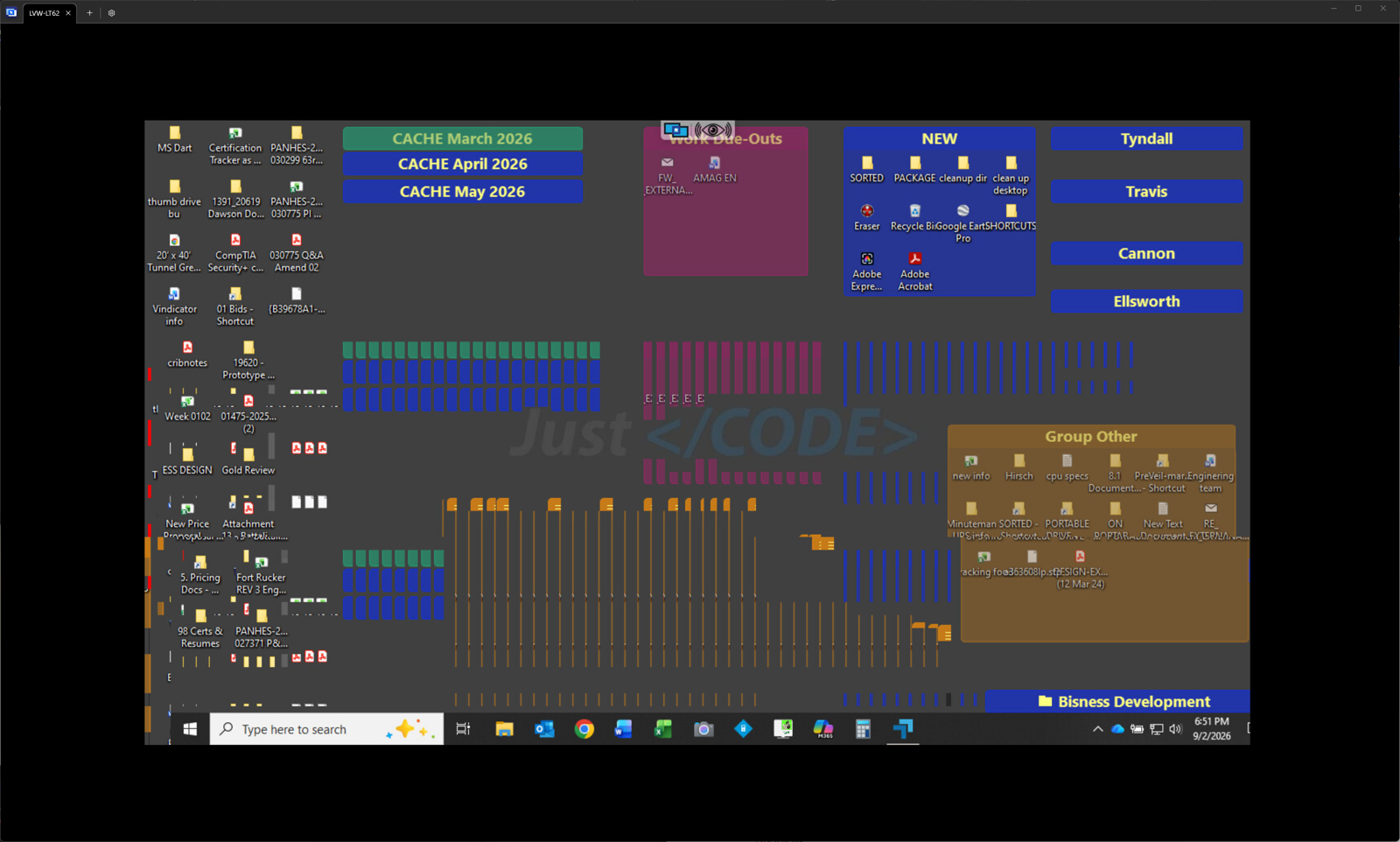
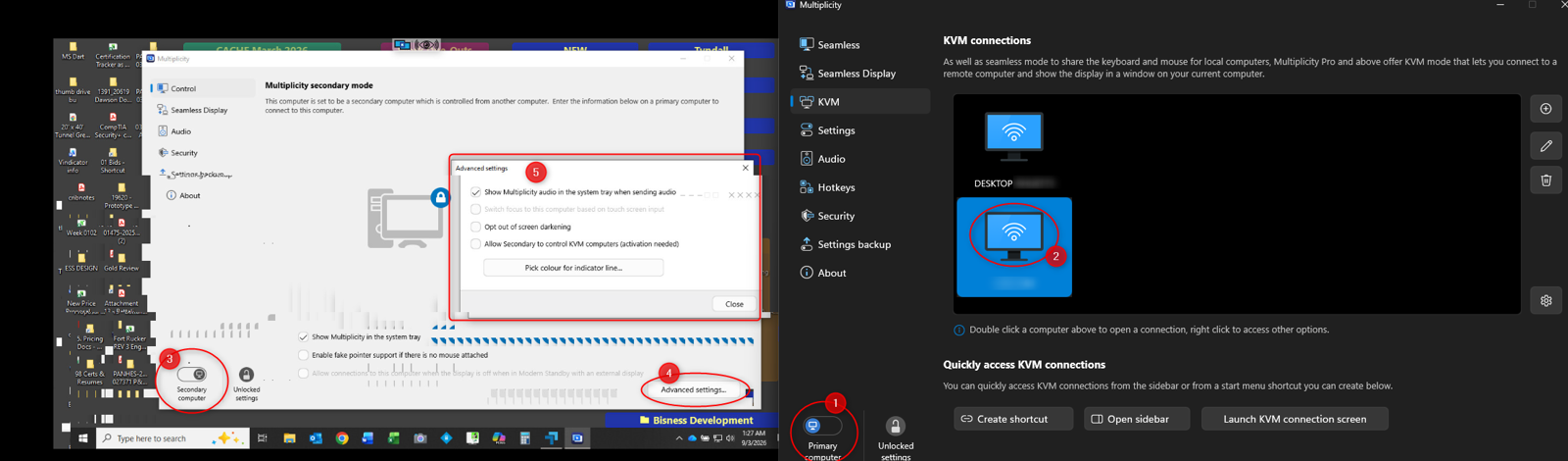
While connected through KVM, I get significant screen artifacts / visual corruption across the remote display. I’ve attached a screenshot showing what I’m seeing. The artifacts can become severe enough that the screen is difficult to use normally.

My workaround in the past was to use Seamless mode, which avoided the issue. However, my work environment has changed and the systems I need to control are now located in multiple rooms, so KVM mode has become much more practical and the display issue is now something I need to resolve rather than work around.

Is this a known issue with Multiplicity KVM mode, and are there any recommended settings, graphics-driver changes, hardware acceleration options, or other fixes I can try?

I’m happy to provide Multiplicity version information, Windows Business 4.07, GPU/driver information, monitor resolutions, or logs if that would help troubleshoot it.


Thanks,
M


Environment:

Workstation/Primary Cpu 

  • Display resolution: (3840x2160)


  • Manufacturer: Puget Systems
  • Model: Puget Workstation Core Ultra Z890 C121-L
  • Motherboard: ASUS ProArt Z890-CREATOR WIFI
  • CPU: Intel Core Ultra 9 285K @ 3.70 GHz — 24 Cores / 24 Logical Processors
  • RAM: 128 GB
  • GPU: NVIDIA RTX 5080 — 24 GB
  • OS: Windows 11 Pro
  • OS Version: 10.0.26200 Build 26200
  • BIOS: American Megatrends Inc. 1501 — 2/7/2025
  • BIOS Mode: UEFI
  • SMBIOS: 3.8
  • Secure Boot: On
  • Kernel DMA Protection: On
  • Virtualization-Based Security: Running

Laptop /Secondary Cpu 

  • Display resolution: (1366x768)


  • Manufacturer: Dell
  • Model: Latitude 5580
  • CPU: Intel Core i7-7820HQ @ 2.90 GHz
  • CPU: 4 Cores / 8 Logical Processors
  • OS: Windows 10 Pro
  • OS Version: 10.0.19045 Build 19045
  • System Type: x64-based PC
  • BIOS: Dell 1.39.0 — 11/6/2024
  • BIOS Mode: UEFI
  • Secure Boot: On

screen grab of the visual issue

428 views 15 replies
Reply #1 Top

Those vertical streaks in your screenshot are stale regions that never got repainted, trailing down from the windows that changed. That reads as a frame encoding problem rather than something wrong on the Latitude's own display.

The lever we have on that is per connection. Open the KVM connection's settings, go to the gear icon and Advanced KVM settings, and flip "Force video encoding mode (quality will be lower for text)". Whichever way it is set now, set it the other way. Those labels are from the Multiplicity 3 docs and 4 moved some things around, so the wording may not match exactly on 4.07.

The part that catches people out: changing Multiplicity settings while a KVM session is open does nothing until you disconnect that session. Change it, disconnect, reconnect, then judge it. Testing it without the reconnect is how this ends up looking like the setting did nothing.

There is precedent for the encoder doing this. 4.0.0.4 fixed an issue where low compression mode in KVM and seamless display showed visual corruption. That specific one is long since fixed and you are well past it on 4.07, but it is the same subsystem, which is why I would start there.

On drivers, the frame is captured on the machine you are controlling, so it is the Latitude's Intel graphics driver that matters here and not the RTX 5080. Worth checking whether that laptop is still on Dell's OEM display driver rather than Intel's current one for that part.

On versions, 4.08 shipped but the only thing in it is a KVM memory leak fix on long-running connections, so it will not touch this. There is a 4.2 beta with more KVM display work in it, but the display fixes named there are an AMD contrast problem on Windows Insider builds and HDR clipping. Neither matches your hardware, so I would not move to a beta expecting this to clear up.

If the encoding toggle changes nothing, the detail that would actually help is whether the artifacts show up on a completely static remote desktop, or only after something on the Latitude moves or redraws. That splits the problem in half.

Reply #2 Top

@Haalee, thanks for that. I may have a comprehension disability here, but in version 4.07 I can’t seem to find anything close to Advanced KVM Settings or Force video encoding mode (quality will be lower for text).

I’m not saying it isn’t there; I’m just not finding it. Then again, I usually can’t find the mustard in the fridge when it’s sitting right in front of me.

Just to establish a baseline: the Latitude’s local display does not show any artifacts at all. The artifacts only appear when I connect to the Latitude from the primary PC through Multiplicity KVM, so while using KVM with the virtual desktop.

If you can point me toward where that encoding setting moved in 4.07, I’ll toggle it, fully disconnect/reconnect the KVM session, and test again.


Reply #3 Top

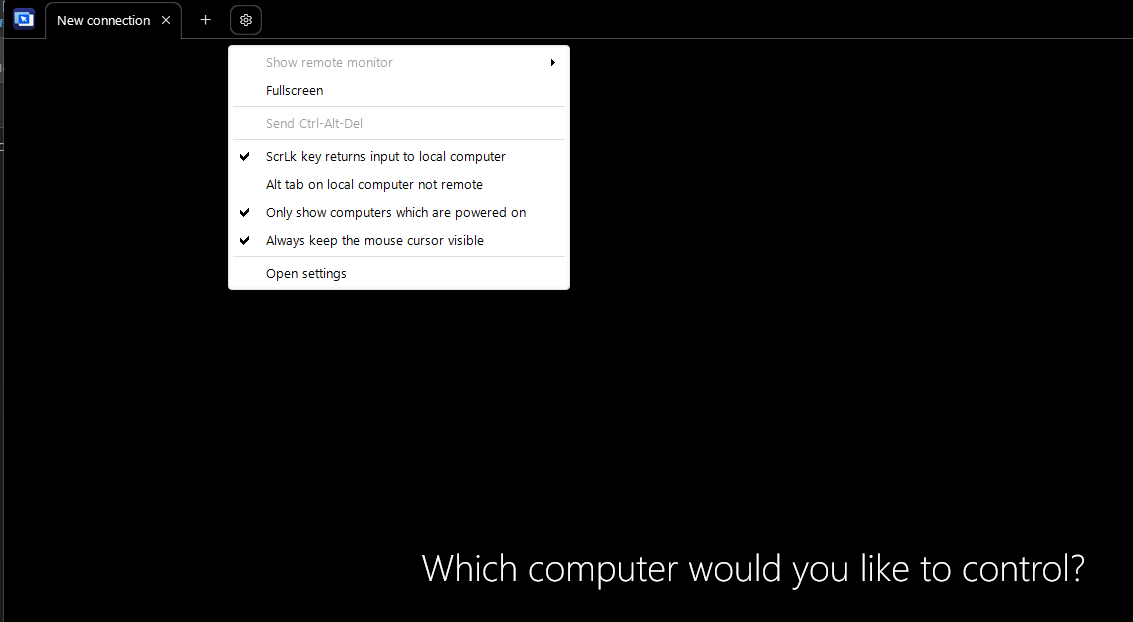
Not a comprehension problem. The gear is not in the main Multiplicity settings window, it sits on the configuration screen for one specific KVM connection.

On the Primary, open the KVM tab and double-click the Latitude's entry in the connections list, or select it and click Edit. That opens the per-connection config with the passcode, display name and KVM mode display fields on it. The gear on that screen is Advanced KVM settings.

Advanced only ever held the one option in what we have written down. If the gear panel on 4.07 shows you something different, tell me what is in it and I will stop sending you after a setting that moved.

One trap worth knowing while you are in there. The stretch-to-fit option in the general KVM settings sets a default for new connections only, and it will not override a preference recorded during your last successful connection to that machine. Change things on the connection itself rather than on the defaults, otherwise it looks like nothing happened.

Your baseline is the useful part of that post. Latitude's own display clean, artifacts only through KVM, puts this in the capture and encode path rather than in its graphics output.

Reply #4 Top

I've tried a few option on the Primary PC, no change.

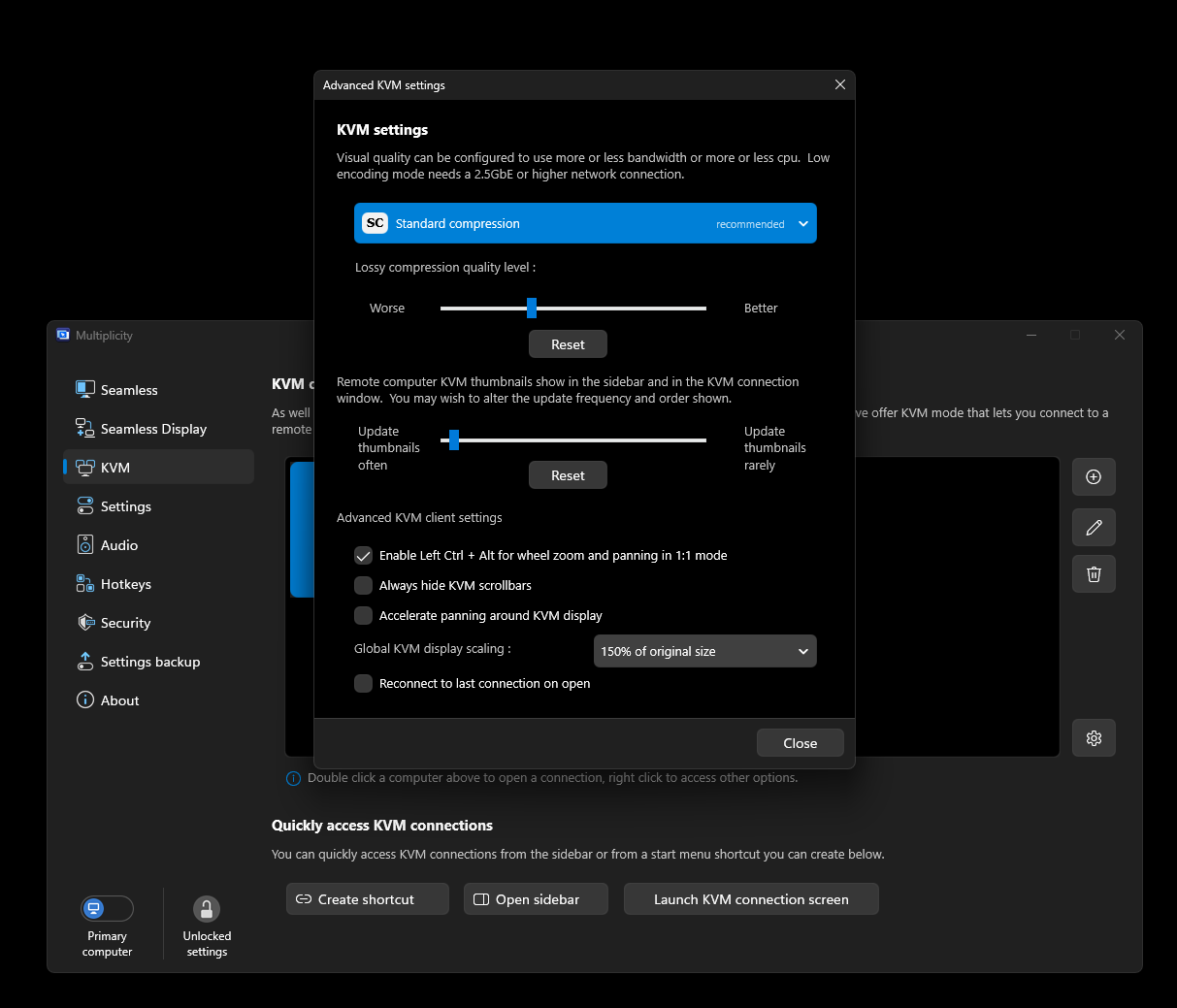
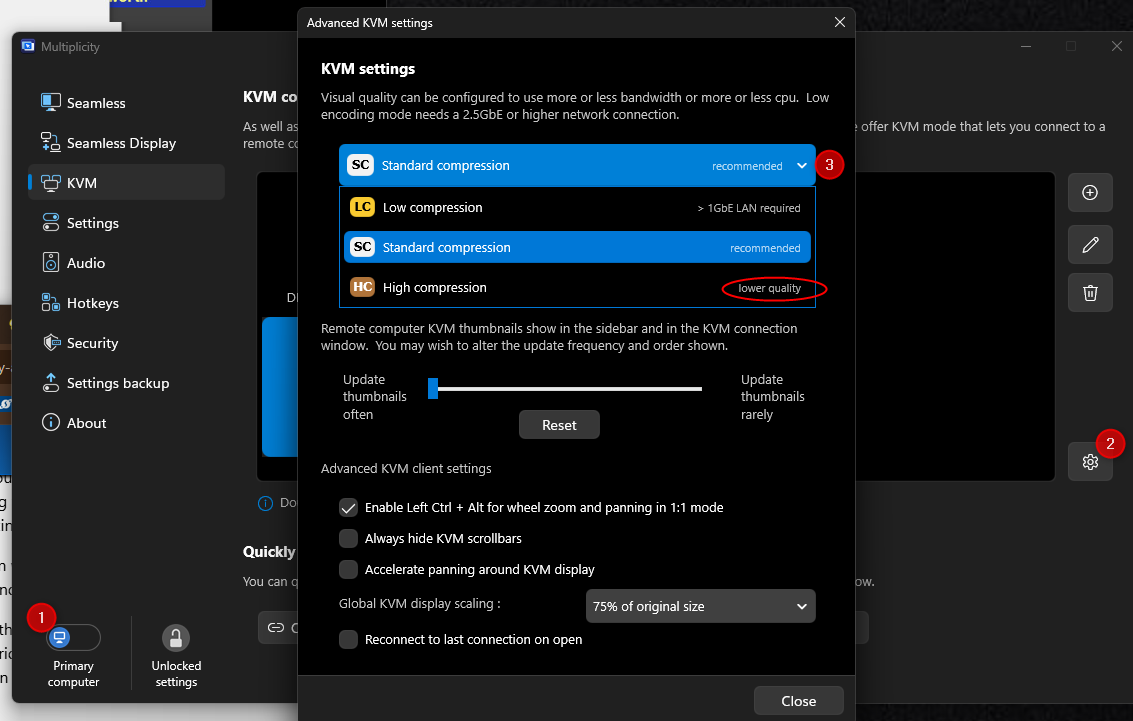
And here is where I arrived following your directions - I think the setting you recall has moved. 

Reply #5 Top

You are right, it moved and it changed shape. What was one checkbox is now a three way selector in that panel: Low, Standard and High compression. You are sitting on Standard, which is the recommended one, so there was nothing there for you to switch on and nothing you missed.

Worth knowing what that rules out. The corruption bug this subsystem has actually had was in low compression mode, fixed back in 4.0.0.4. Low also wants a 2.5GbE link, which that panel says itself. You are not on it, so do not spend a test going there.

The thing in your screenshot you have not moved is at the bottom of it. Global KVM display scaling, set to 75% of original size. That puts a scaling stage in between the frame being captured on the Latitude and it being drawn on your screen.

You can test that without touching settings at all. In a live KVM session bring the toolbar up and use the 1:1 toggle, which swaps between 1:1 and stretch or shrink to fit. If the streaking stops in 1:1, this lives in the scaling path rather than the encoder. If it looks identical both ways, scaling is out and we are back to encode.

One caveat so the result means something. 1:1 only gives you full detail when the Latitude's resolution is lower than your local one. If it is higher you will be panning around a larger desktop, which is awkward, but it still answers the question.

Reply #6 Top

Haalee - I appreciate the continued troubleshooting.

On the scaling side, I’ve actually done quite a bit of poking around already trying to shake something loose. I originally had the display at 125%, then tested at 100%, and as you can see in the screenshot, I’ve even gone down to 75%.

I’ve also toggled between 1:1 and stretch/shrink-to-fit during the KVM sessions. I’ve actually gone so far as to restart each Multiplicity instance between changes, just to make sure I wasn’t testing against a setting or session that hadn’t fully refreshed. Unfortunately, the artifacting has persisted through all of those combinations.

I don’t want that to come across as “already tried it, next,” because I genuinely appreciate you continuing to troubleshoot this with me. I just feel like I’ve done a pretty substantial amount of poking around at this point without finding a setting that changes the behavior.

The thing that keeps sticking with me is that I didn’t have this problem back around 2024 with essentially the same setup. That makes me wonder if something changed along the way with a Multiplicity update, Windows/graphics update, or how KVM is now handling the display.

Would be nice if an engineer would hop on or reach out

Reply #7 Top

You ruled scaling out properly, restarts between changes included, so it is off the table rather than merely untested. Three resolutions and both 1:1 and shrink-to-fit is more than most people do before reporting.

The 2024 detail is the most useful thing in your post, and it may not be the setup that changed. Multiplicity 4.0 went out on 8 October 2024. If your clean stretch was before roughly then, you were on 3.x, and the 3.x KVM display path is not the one you are running now.

The changes there were not cosmetic. Across 4.0 and 4.01 the KVM display side got performance and memory work, reduced idle bandwidth, a fix for an initial connection crash, and the compression corruption fix in 4.0.0.4. Your Latitude is being captured and encoded by different code than it was in 2024.

So the thing worth pinning down is which version you were on when it was clean, and roughly when you came off it. If that lands either side of October 2024, this stops being a settings hunt and becomes a regression with a date on it.

Two questions from earlier are still open, and both move this further than scaling did.

Does the corruption show up on a completely static remote desktop, left alone a minute with nothing redrawing, or only once something on the Latitude moves? That splits capture from encode.

Is the Latitude on Dell's OEM Intel display driver or on Intel's own current one for that part? The frame is captured on the Latitude, so that driver sits in the path and the 5080 does not.

On getting an engineer onto it, I am not going to promise you one. What I can tell you is what makes a thread like this get picked up: a version boundary, a clean baseline, and the static versus motion answer. You already have the middle one.

Reply #8 Top

Let me get you some info:

As for the Version of Multiplicity, it was ver 3, i purchased in 2022, then I bought the suite in 2025 which upgraded Multiplicity to ver4.

Linking to two videos of a KVM session, one video for the native screen of the Laptop as the other is the remote on the Workstation 

Laptop Screen Record

Workstation Screen Record

Hope this helps. 

Reply #9 Top

That settles the version question, and it settles it in the direction that matters. You were clean in 2024 on Multiplicity 3, and the artifacting is on 4, which you came to with the suite in 2025. The boundary is the 3 to 4 jump rather than a Windows or driver change you would otherwise be hunting for months.

Two things before you spend another afternoon on it. Nothing in 4.05 or 4.07 touches display corruption; both are connection, hotkey, seamless display and memory work. The display side items, an AMD contrast fix and HDR handling for KVM mode, only show up in the 4.08 and 4.2 changelogs.

So check your About tab against 4.08. If you are below it, an update is worth doing on its own merits. If you are already there, updating is not the answer to this one and I would rather you knew that than spent a week on it.

The HDR item is the part you can act on today. HDR enabled in the OS is documented as making everything overbright in KVM mode, which is what the limited HDR support in those changelogs is there to address. The documented failure is the picture clipping toward white rather than streaking, so if HDR is on on the Latitude, turning it off for one session is a rule-out rather than a diagnosis.

Still open from before, and it is the one that narrows this most: does the corruption appear on a completely static remote desktop left alone for a minute, or only once something on the Latitude redraws. That splits capture from encode, and those are two different bugs with two different owners.

The screen recordings are the right artefact to have sitting on the thread. With a 3 versus 4 boundary and a static or motion answer next to them, that is a report someone can pick up rather than rebuild from scratch.

Reply #10 Top

Thanks, I checked both systems against the HDR item you mentioned.

Workstation / Primary: Windows 11 recognizes the Samsung display as HDR-capable, but HDR is currently OFF. Not that it matters but I also checked the second monitor LG HDR WFHD display (NA).

Latitude 5580 / Secondary: Windows 10 reports the internal display as not HDR capable:

  • Stream HDR video: No
  • Use HDR: No
  • Use WCG apps: No

So HDR does not appear to be a factor in the KVM issue. It is disabled on the workstation and isn't supported on the Latitude's internal display.

I also confirmed the Multiplicity installation. I'm currently running Multiplicity 4 Business, Version 4.07, and its built-in update check reports that the installation is up to date. One note: it seems the secondary is running Version 4.07 without the "Business" moniker.

That puts me on 4.07, so based on what you found regarding the HDR/KVM changes appearing in 4.08/4.2, there may still be a newer build that the application's update mechanism simply isn't offering me.


Not sure if I made this clear regarding the static-vs-redraw question, but the previous videos are actually showing the same KVM session from apposing view points. The corruption is only visible on the workstation while viewing the Latitude through Multiplicity's KVM mode. The Latitude's local display remains normal throughout the session.


Once the streaking/corruption appears in the KVM view (which is at the first established frame), it does not correct or restore itself over time, even when the remote desktop is left static.

If you look at the workstation video and the attached screenshot, there appears to be a horizontal band across roughly the middle portion (remaining 2/3) of the KVM image where the video stream becomes displaced. The best way I can describe it is almost like an upright square-wave pattern: portions of the image are horizontally shifted in alternating steps, producing the repeated “step” distortion visible in the screenshot.

What is particularly interesting is that the upper portion of the KVM image remains unaffected. The distortion seems confined to a specific horizontal region rather than corrupting the entire frame.

Once that condition exists, it persists for as long as the KVM session/feed remains open. Any activity on the Latitude that moves through or causes a redraw within that affected region gets distorted by the same pattern. Those redraws can also leave additional artifacts behind in the KVM desktop image.


Again, none of this appears on the Latitude's physical display. It is only present in the KVM image being rendered on the workstation, which makes this look much more like an issue somewhere in the KVM capture/encode/decode/rendering path than an issue with what the Latitude itself is actually displaying.

Reply #11 Top

That is a complete answer to the static question and it moves things. Present at the first established frame, persisting on a desktop that is not redrawing, and confined to a horizontal band with the top of the image clean. That rules out anything accumulating over a session, and it rules out the motion triggered case I was chasing.

Your edition note is the thing to follow up before anything else. Our connection guidance is that both machines run the exact same version and build, checked on the About tab. The catch is that the About tab carries two numbers, a UI version like 4.07 and a file version like 4.0.7.2, and those can differ while the 4.07 matches on both screens. Compare the file version, not the one you have been reading.

On the update prompt, 4.08 is a released build from January 2026 rather than a beta, so an updater reporting 4.07 as current is a fair thing to question. Why it is not being offered to you I cannot tell from out here. I am not going to point you at 4.2, because that is a beta and it is not a fix I can stand behind for a machine you work on.

The rest of your post is the report. Same session captured from both ends, corruption only in the rendered KVM image, the Latitude's own panel clean throughout, and a fixed band of alternating horizontal displacement rather than general noise. Your read of it, that this sits in the capture or encode or render path rather than in what the Latitude is actually displaying, is what that evidence supports.

That is narrow enough for someone to work from instead of rebuilding it from scratch, which is the state I wanted this thread in.

Reply #12 Top

I had to pull the file version directly from the MultiplicityConfig.exe properties, since the About screen only shows 4.07.

I checked it on both systems and can confirm they match exactly:

  • Workstation: 4.0.7.2
  • Latitude: 4.0.7.2

So we can rule out a version/build mismatch between the two machines. Both are running Multiplicity 4.07, file version 4.0.7.2.


Thanks again for looking; let me know what else i can provide. 

Reply #13 Top

Matching file versions rules out the last thing I could check from our documentation, and pulling 4.0.7.2 off the MultiplicityConfig.exe properties was the right way to get it, since the About screen stops at 4.07.

Two measurements would be worth more than anything else you could send, and both come off what you already have in front of you.

Where the band starts. If you can say where the clean section ends, in pixels or as a fraction of the image height, that turns "the lower two thirds" into a number. A number lines up against a resolution or a frame boundary in a way a description does not.

Whether that boundary moves. Set the Latitude to a different resolution, reconnect, and see whether the clean portion keeps the same proportion of the image or stays at the same absolute row. Those two results point in different directions, and it is a test nobody but you can run right now.

Past that I am at the end of what I can check from documentation. Versions match, scaling is out, compression mode is out, HDR is out at both ends, and the symptom is characterised down to where it appears and when. That is the state a thread wants to be in before it needs a developer, and I am still not going to promise you when one turns up.

Reply #14 Top

Well, well, well… something interesting came out of that test.

I followed your suggestion and changed the Latitude from its native 1366×768 to 1280×768, first, while leaving the existing KVM session open.

While the session remained active, changing the resolution did not clear the corruption or move the affected boundary. In both resolution conditions, the displayed KVM image begins around row 140 of the workstation capture, with the corruption beginning around row 330–332. That works out to approximately 190 pixels of clean image, or roughly the upper 33% of the displayed KVM image, with the remaining ~67% affected. Yes both resolutions are still 768 pixels high...

However, the more interesting result came when I closed the KVM connection after making the resolution change and then established a new KVM session. The corruption was completely gone. The new session initialized cleanly and is currently displaying normally.

That's especially notable because rebooting the machines previously did not resolve the corruption. In this case, I did not reboot either system. Changing the Latitude's display resolution followed by completely closing and re-establishing the KVM session cleared a condition that had otherwise persisted through reboots.

So this test may have uncovered something more useful than the original measurement. Once the corrupted state exists, a live resolution change doesn't repair it; however, changing the remote resolution and then forcing Multiplicity to establish a new KVM session appears to reset whatever state was causing the corruption.


For the moment, at least, the KVM session is clean. Thank you, this test finally shook something loose.


Thank you. 


Reply #15 Top

That is the most useful result this thread has produced, and the part that matters is what never cleared it. Rebooting both machines did not fix it. A fresh session did.

Two things moved together though, the resolution change and the reconnect. Next time it appears, the cheap test is to disconnect and reconnect without touching the resolution at all. If that alone clears it, your workaround is one reconnect rather than a display change, and we learn the resolution was incidental.

The mid-session half of your result has a documented cousin. The 4.0.0.4 changelog notes that changing Multiplicity settings with an open KVM session will not take effect until the user disconnects the session. A live session not picking up a change until it is re-established is behaviour we describe elsewhere, so that half of what you saw is less of an outlier than it looks.

On the measurement, worth knowing what it settles and what it does not. Both resolutions you tried are 768 high, 1366 and 1280 wide, so the boundary holding at roughly row 330 tells us it did not move when the width changed. Absolute row against proportion of height is still open, and only a resolution with a different height answers it. I am not going to ask you to break a working session to find out.

Numbers logged for whoever picks this up: the image starts around row 140 of the workstation capture, corruption from around row 330, roughly 190 pixels clean, upper third clean and lower two thirds affected.