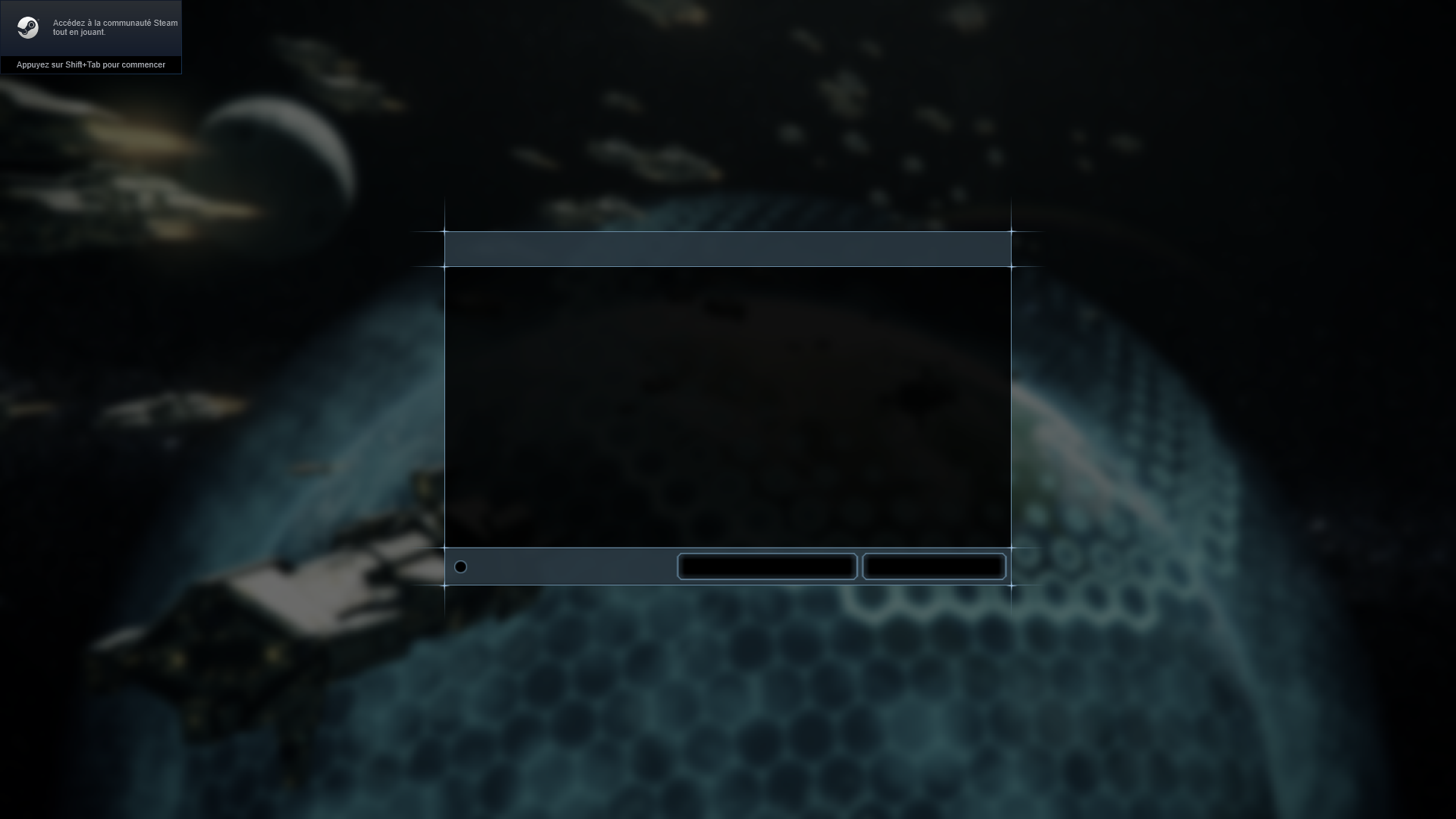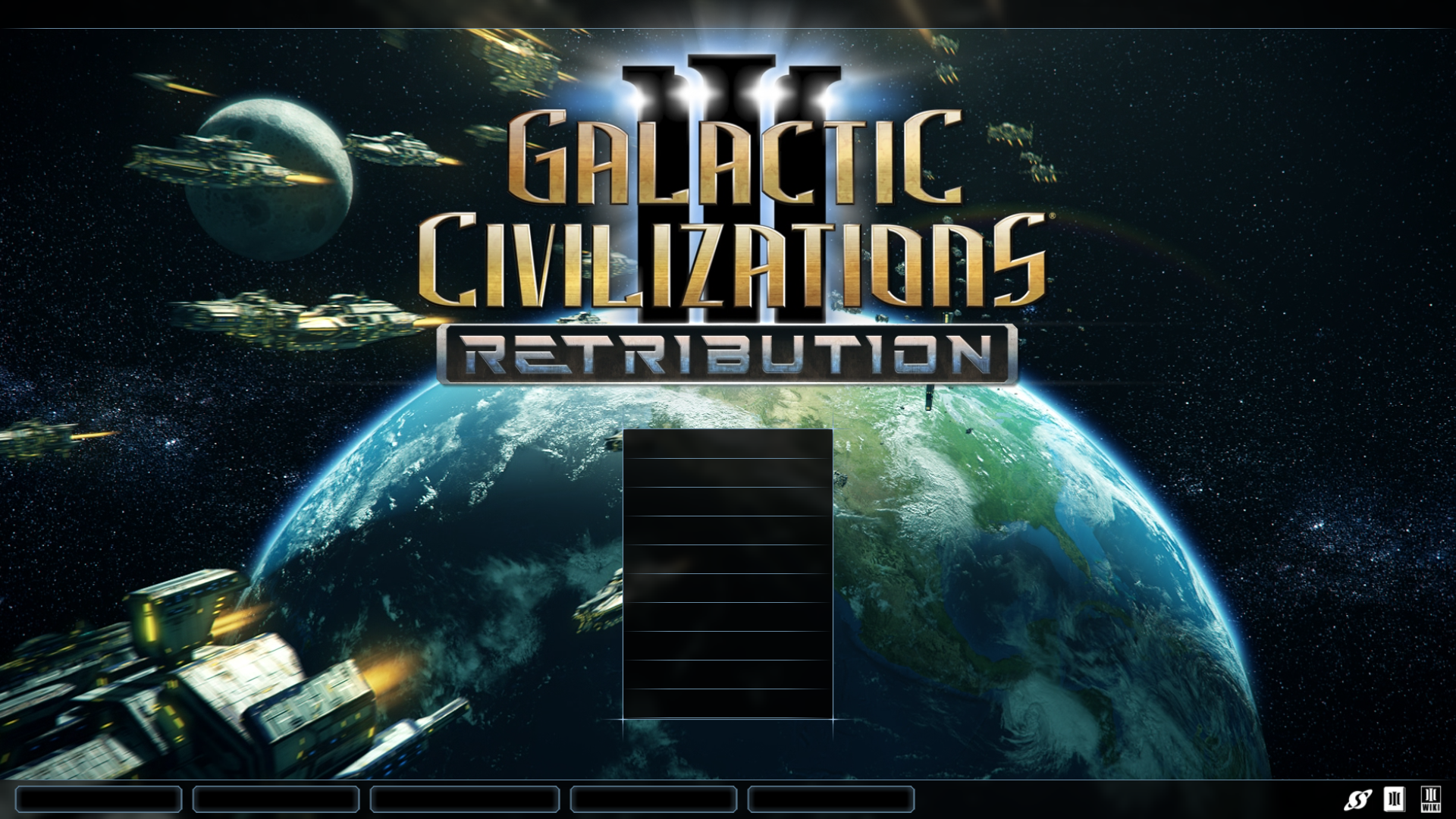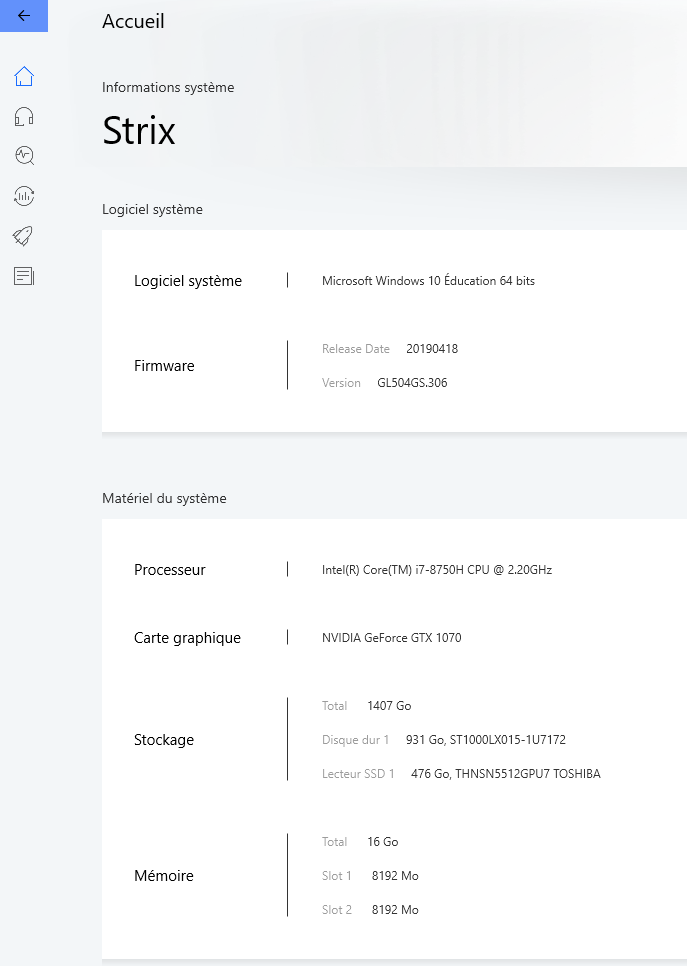


First launch no writting in game.
I try to fix it but cannot get it right.
https://send.firefox.com/download/c8f85ddd4daa1740/#7k9kebL7FSpcbH_76dTidw GalCiv3 Forums
Hello everyone,
I was a new guy hear. My friends let me try this great game and after that I run to buy it. But now I have try to launch the game and I got a menu without any Writing. I try mutiple time to revalidate the files. And that's do nothing.
The first time the real problem was the Bink vidéo. After one white night to try to fix it I remove the game and reinstall it on my C: partition. That fix the first trouble and now then I cannot see what write. Because all text are gone... I don't know how fix it. I install the consolas font and copy into the font folder of the game. But that fix nothing. I use the revalidation 3 more times and that's tell me always I as 5 files not right then, he try to download them ? I don't know but I'm tired to try so hard to fix a game...
Please tell me I 'm not alone with this problem. I try to search but I think I don't know how to name it. No writting in game. No text. not an letter... wtf ?! :3
I give you in the link 2 screenshot of the bug on my game.
I love this game but I can play it at all. that's so frustrating.
Best,
Elvon
 Stardock.net Forums