





Transform your Desktop into PS3 XMB Style
Tutorial
 WinCustomize Forums
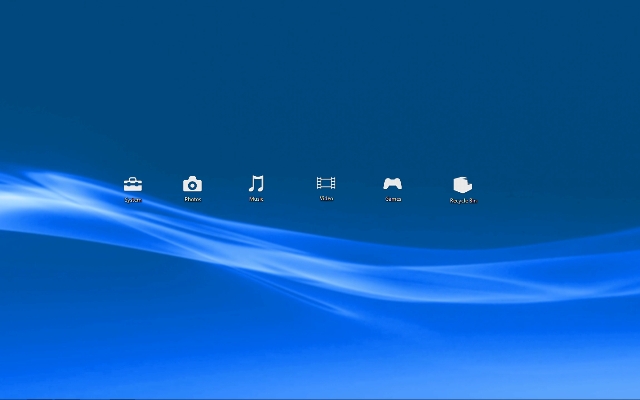
Video:
http://www.youtube.com/watch?v=pmR5WW4XyZo
Instructions:
Enable you DreamScene
Windows Vista Ultimate
Set video as DreamScene video wallpaper:
1. Right-click on the desktop.
2. Select Personalize.
3. Select Desktop Background.
4. From the Location dropdown, select Videos or Public Videos, or you can also choose Browse to the location of your video file to select video in not common place that is not detected.
5. Select a video that is to become desktop background.
6. Click OK
Windows Vista lower version:
Download this
hxxp://hotfile.com/dl/20229148/249f505/dreamscene.html
And follow this Tutorial:
hxxp://www.youtube.com/watch?v=UMWV0sLHWVg
Windows XP
Download This:
Download Here
Extract it using WinRAR...
Now Run XPScene,
1. select input video (*.wmv, *.mpg or *.avi) and select Resize Mode: Use "stretch" to avoid black bars, or "keep aspect ratio" for best quality (default, recommended).
2. select output folder (to store video and html-file),
3. click "Create" button.
Now you can select your DreamScene html-file by clicking "Display Properties > Desktop > Background > Browse". ((use HTML file as wallpaper ))
XP System Requirements:
===================
The XPScene tool needs the Microsoft .NET 2.0 Framework to run correctly. XPScene is only needed to create the DreamScene html-file, it is not needed to run the created DreamScene file as video background.
To smoothly run DreamScene videos on Windows XP a 3.0 GHz single core CPU (or better) and 1024 MB Ram (or more) is recommended.
In addition, a graphics card with DirectX hardware video acceleration can dramatically reduce cpu usage (all newer NVIDIA and ATI cards).
Windows 7
Download this:
Download Here
Run the Windows7-DreamScene.exe as Administrator to install and enable Windows DreamScene on Windows 7. The installer will copy DreamScene.dll to %WinDir%\System32 folder, DreamScene.dll.mui to %WinDir%\System32\en-US folder and add the required registry keys and values. Then it will automatically restart the Explorer to make the installation of DreamScene works immediately.
A Windows DreamScene folder has also been created in %WinDir%\Web\ folder. You can place any video file that you want to set as DreamScene background wallpaper here as in Windows Vista, or anywhere you like. However, the folder is less useful as Windows 7 does not support direct viewing of video or animated media in Personalization Control Panel.
To apply a video clip (in .WMV or .MPG format) as the DreamScene animated wallpaper desktop background, right click on the video media file, and select Set as Desktop Background in the context menu. Due to DreamScene been stripped from Windows 7 issue, video files may not be visible inside Personalization and Desktop Background configuration page. However, all features of DreamScene, such as Play DreamScene, Pause DreamScene and sound/audio are supported.
Download The Following DreamScene(3 mins length 720p Video):
Download Here
Download Here
Download Here
Download Here
Download Here
Download Here
Download Here
Download Here
Dwonload Here
Adding XMB Like Icons:
Download StandAloneStack v2:
Download Here
Extract it on your program files directory
Run StandAloneStack.exe
Creat a new stack, change the preference to your liking
Create a shortcut, place it on your desktop
Right Click on the Desktop then Change Icon to the PSP/PSP3 Icons.
Download the icons here
High Quality Wave Wallpapers(for those who dont want to use DreamScene or Trouble running DreamScene):
Download Here
Download Here
Download Here
Download Here

Download Here
Download Here
Credits goes to the original creators of this resources.
!hardcore
